
In my last post about dynamic pattern images , I showed how to create images on the fly for use as background pattern images. As promised, today I’ll show how to create composite images with cutouts using masks.
Building on the sample project from last time, I have changed the background pattern image to a red diamond on a black square. This shows the effect of using a mask to create an image much better later.
When thinking about creating images on the fly, it is reasonable to assume that you’ll need to draw some lines or create and fill some paths. The original example does exactly these things: fills the square with black, and draws and fills a diamond shaped path with (now) red. Within a single context, we can draw as much as we want like this to produce an image.
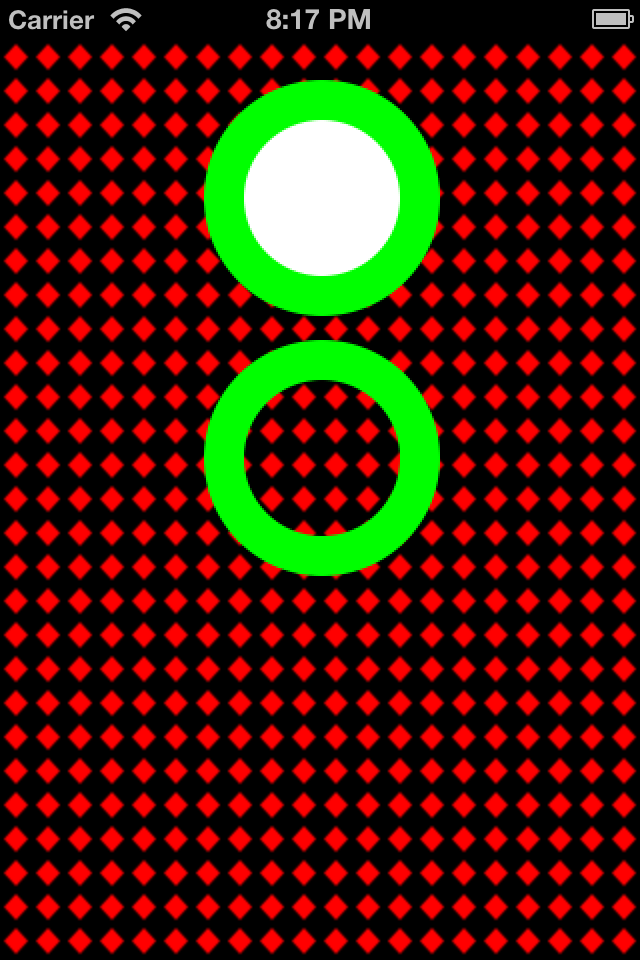
In the first add-on to the sample project, I’ve added a UIImageView with a “filled doughnut”. That is, a green ring, with a white center. The method -filledDoughnutForSize: takes care of producing the image. Quite frankly, it is not much different from the method -patternImageWithSize:forRectSize: from the original example. In the screen shot below, you can see that the green circle with the white inner circle appears as advertised.
Now, what if I really want a ring, with an open center? One cannot draw using clearColor, although that might be your first inclination. Here’s where using a mask comes in. The idea of a mask is to cover with a color (white) everything in your original image that you want to keep, and cover with black everything you want to discard from your original image.
The second new method -emptyDoughnutForSize: does exactly this. The first part is just like before: we draw a green circle in the DeviceRGB color space to produce imageRef. Next, instead of drawing a white, inner circle, we have to produce a new image that we’ll use as a mask.
A mask is created using a DeviceGray color space. This makes sense, because a mask only needs to identify two things: what to keep and what to discard. We start off by coloring the whole image white. This means: keep everything. Next, we draw our inner circle in black. This is what we’ll discard from the original image. From this context, we create maskImageRef.
The magic happens by calling CGImageCreateWithMask() to combine imageRef and maskImageRef. The result, a green ring with a hollow center, is shown below. You can see how the diamond pattern background shows through. Cool, no?
Update
Reader Marc Respass noted that the images generated were not high resolution for Retina displays. You can see our exchange in the comments. Indeed, if you look at the green circles in the image above, produced with the Retina iPhone4 simulator, they appear jaggy. Now look at this image:
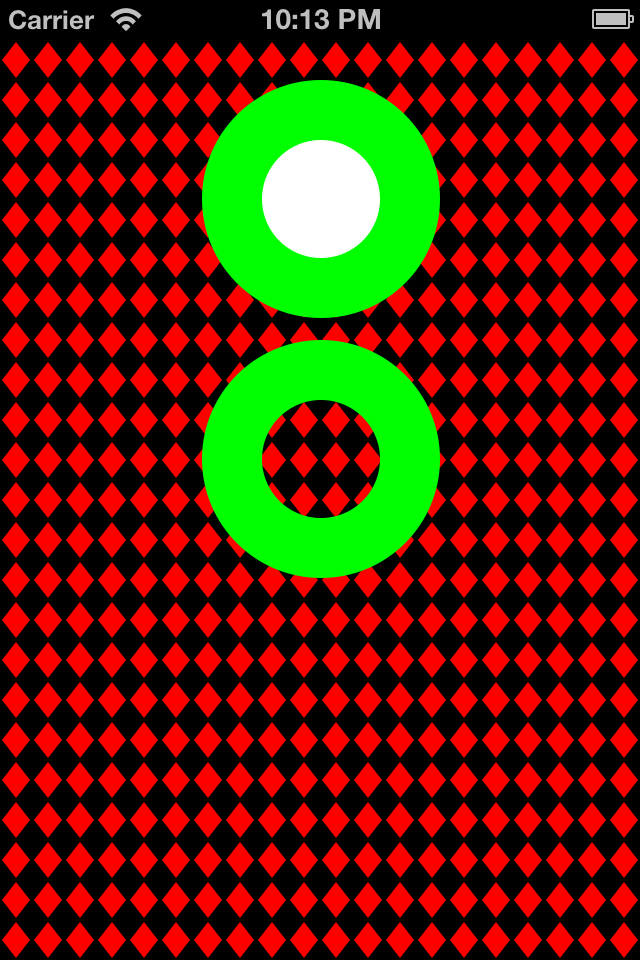
This is truly a 2x resolution image, because that is how the images for this example were generated. And the solution was pretty simple.
In the sample code in the -viewDidAppear: method, there are a couple of changes required. First, we have to make sure that our images are created with enough pixels. A Retina image has twice the pixels as a non-Retina image. So our 16x16 pixel pattern image, for a Retina display, really needs to be 32x32. We can do this dynamically using an affine transform:
    CGFloat scale = [[UIScreen mainScreen] scale];
    CGAffineTransform transform = CGAffineTransformScale(CGAffineTransformIdentity, scale, scale);
On a Retina display, where the scale will be 2, this creates a transform we can use to size-up by 2 any CGSize. So when we create the pattern image, we can apply it like so:
    // Create a 16x16 image that is a red diamond on a black background
    UIImage *image = [self patternImageWithSize:CGSizeApplyAffineTransform(CGSizeMake(16,16), transform)
                                    forRectSize:CGSizeApplyAffineTransform(self.view.frame.size, transform)];
Note that we not only scale up our desired image size, but for the purposes of this example, the target frame size the pattern image will be used to fill. (This is a nuance of the type of pattern I am trying to create so that it fills the frame without being cut off.)
Now, in the method -patternImageWithSize:, there is one more secret. The image returned is created using the more robust UIImage class method +imageWithCGImage:scale:orientation: which lets us specify that the created images scale is, in this case, 2x. The magic of the SDK and iOS then displays the image in a 1x area, resulting in a high resolution presentation.
Creating the doughnuts requires similar changes. We can reuse the transform created above, and apply it to the CGSize arguments in the calls to the doughnut methods:
// Create a UIImageView, and an image
UIImageView *imageView = [[UIImageView alloc] initWithFrame:CGRectMake(100, 20, 120, 120)];
imageView.image = [self filledDoughnutForSize:CGSizeApplyAffineTransform(imageView.frame.size, transform)];
I included the UIImageView creation to highlight that we don’t have to up-size its frame. We only need to up-size the image we want to put in it. And sure enough, the new doughnuts’ edges are much more crisp.
Very cool indeed. I’ve updated the Github project.